
Messages, calls and meetings
- Messages are written conversations between you and one teammate.
- Calls are voice or video between you and one teammate who is online.
- Meetings have a link and can include a group and guests. See Meet on video.
Conversations belong to a workspace. If you share two workspaces with someone, each workspace keeps its own conversation with them.
Send a message
- Open Messages in the left rail.
- Select New message and choose a workspace member, or select an existing conversation.
- Type your message and press Enter. Use Shift + Enter for a new line.
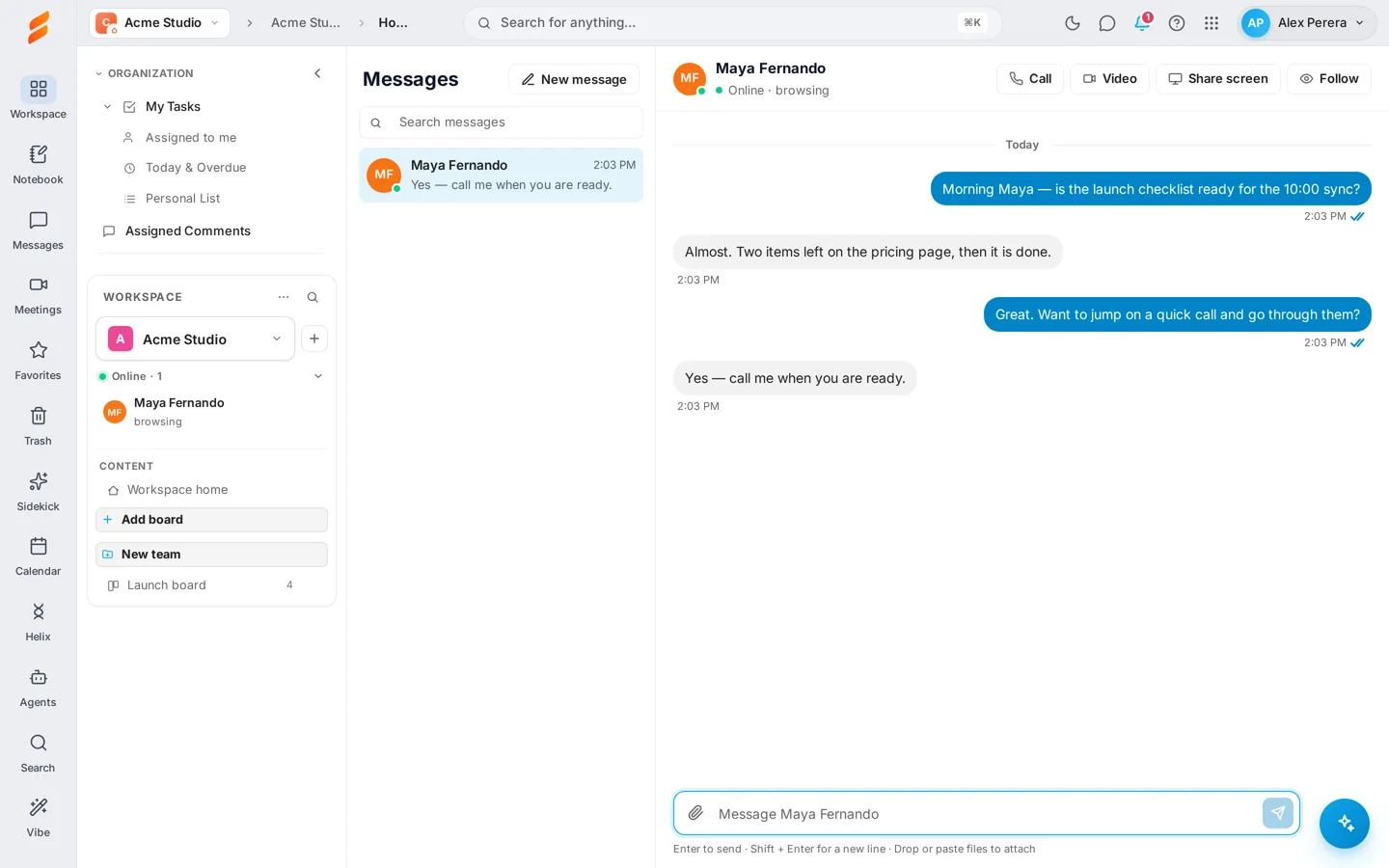
You can also select anyone who is online and choose Message from their menu. The number on Messages in the rail shows how many conversations have something new.
Send a file
Select the paperclip, drag a file onto the conversation, or paste an image. You can attach up to 10 files to a message, 25 MB each. Images show as thumbnails; other files show their name and size with a download link.
Only the two people in the conversation can open the files.
Sent, delivered and read
Each message you send shows its status under it:
- One tick — sent.
- Two ticks — delivered to the other person’s Snappi.
- Two blue ticks — read.
Start a voice or video call
- Open the conversation with the person.
- Select Call for a voice call or Video to start with your camera on. Share screen offers them your screen straight away.
- Allow the microphone and camera when your browser asks.
- The call starts when they accept.
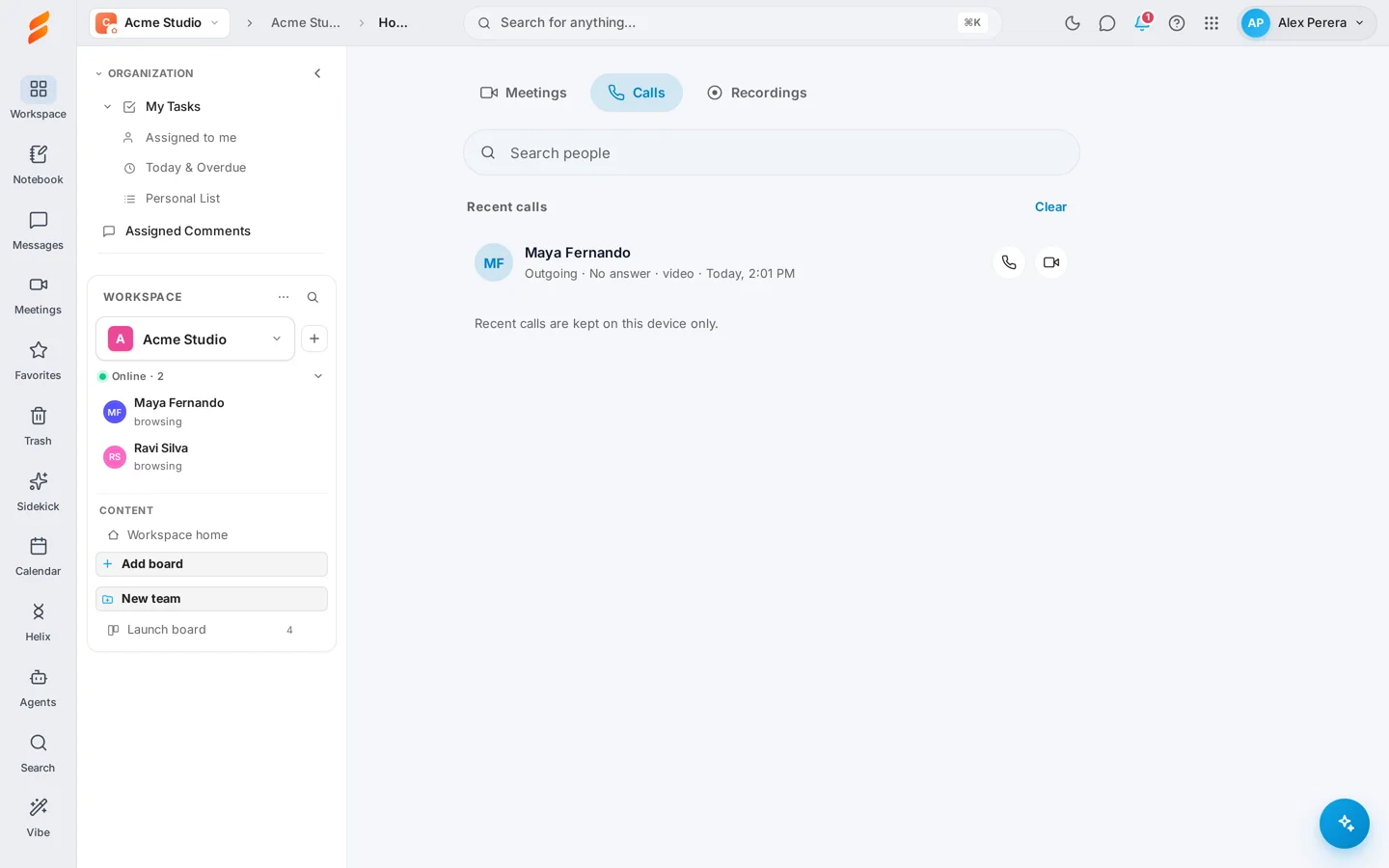
The same choices are in a person’s menu in the Online panel and on the Calls tab of the Meetings page. The buttons are greyed out, with the reason, when the person is offline or already in a call.
Answer a call
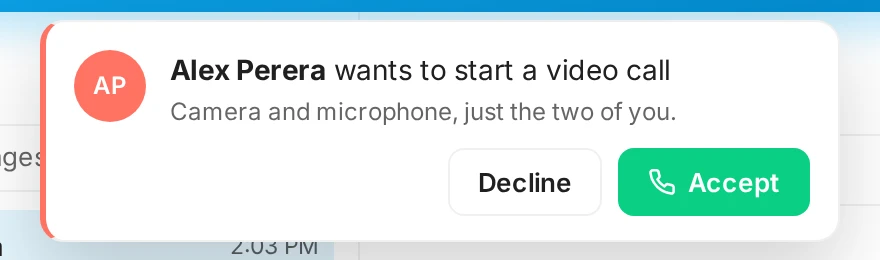
When someone calls, Snappi rings and shows a card with their name and whether it is a voice or video call. Select Accept or Decline. It rings in every Snappi tab you have open, and on your phone if you use the Snappi app.
During a call
The call opens in a small window above the page, so you can keep working. Drag it where you like.
- Microphone and Camera — mute, or turn your camera on and off. A voice call becomes a video call when you turn the camera on.
- Share screen — show a screen, a window or a tab.
- Chat — write to each other during the call. This chat is not kept after the call.
- Follow — follow the other person on their board.
- Expand and Minimize — at the top right of the window.
- Hang up — the red button. Either person can end the call.
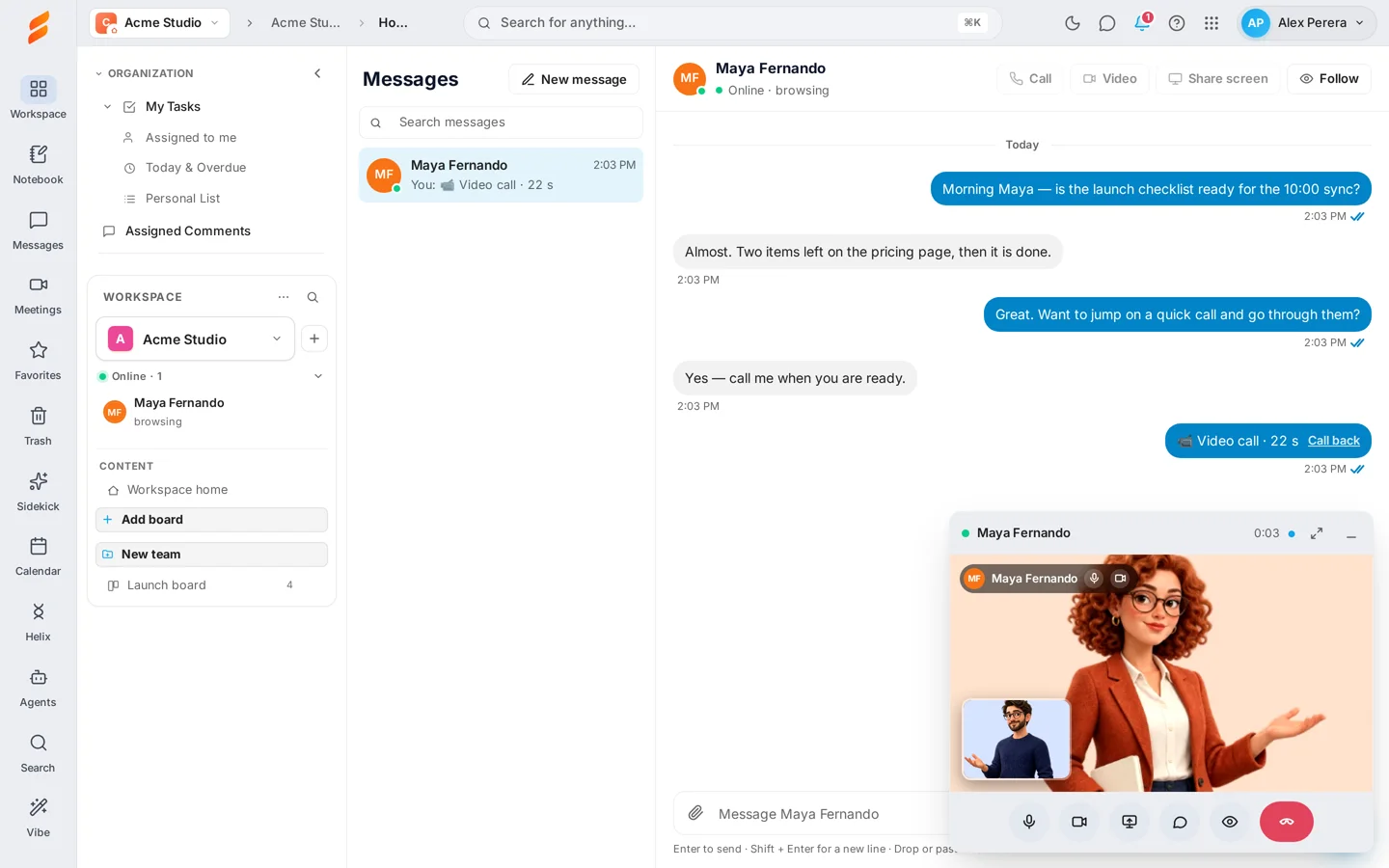

The bar at the top of the video shows whether the other person’s microphone, camera and screen are on.
Call history and the Calls tab
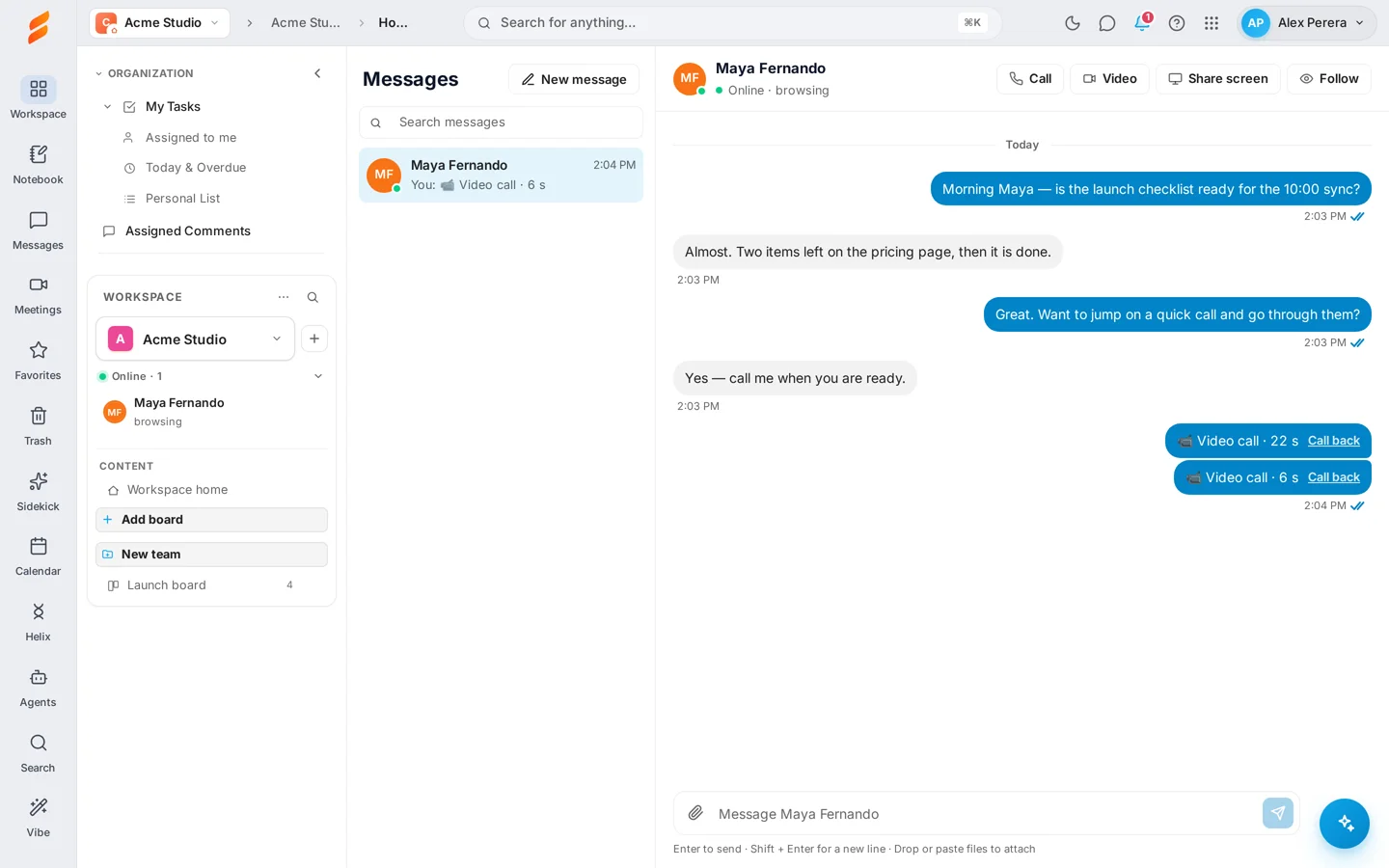
Every call is listed in the conversation with the person, with its kind and length. Select Call back to ring them again.
Open Meetings and select the Calls tab to search for a teammate and call them, and to see your Recent calls. Recent calls are kept on the device you are using; select Clear to remove them.
Get notified
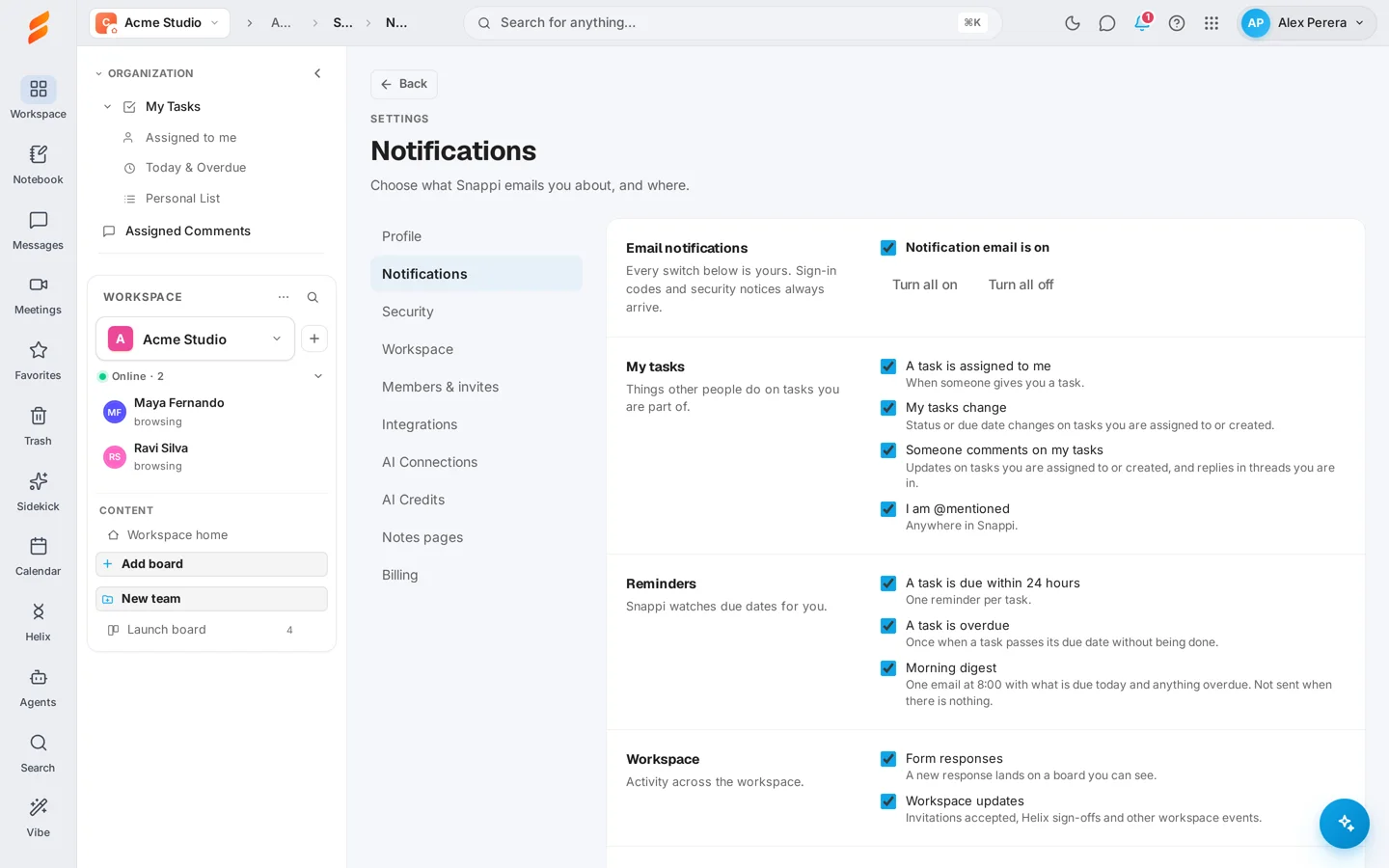
- On your desktop — open Settings → Notifications and select Enable desktop notifications. You get an alert for new messages, follow requests and calls when Snappi is open but not in front.
- By email — if you are not online when a message arrives, Snappi adds it to your bell and emails you, at most once per conversation every 30 minutes. Turn this off under Messages in Settings → Notifications.
- On your phone — the Snappi app rings for calls and shows new messages. See Snappi on your phone.
If something is not working
- Call and Video are greyed out — the person is offline or in another call. Hover the button to see why, or send a message instead.
- The other person cannot hear or see me — allow the microphone and camera for snappi.now in your browser’s site settings. If Snappi shows Allow and try again, select it.
- The call does not ring — the first sound needs you to have clicked somewhere on the page. Turn on desktop notifications so you also get an alert.
- I get no desktop alerts — your browser may be blocking them. Allow notifications for snappi.now in the browser’s site settings.
- A file will not send — check it is under 25 MB and that the message has no more than 10 files.
Keep exploring
See all Snappi guides