
Connect a calendar
Open Settings → Integrations and choose Google Calendar, Outlook Calendar or Zoho Calendar. Complete the provider’s sign-in and permission steps, then return to Snappi.
Connected accounts appear in the integrations management area. If an account shows Reconnect required, reconnect it before relying on new calendar updates. Integrations marked Soon are not available to connect yet.
Review your schedule
Open Calendar and choose the day, week or month view. Use the arrows to move through dates and Today, This week or This month to return to the current period.
Select an event to see its details. Use Sync to request an update from your connected calendars. If syncing reports an error, check the connection in Integrations.
The workspace Calendar displays connected calendar events. To see a board’s dated tasks, use the Calendar view within that board.
Create a meeting
- From Calendar, select New meeting, or open Meetings and choose New meeting → Schedule on calendar. If you have no connected calendar, follow the Connect a calendar prompt first.
- Enter the title, date, start and end times, or tick All day. Choose whether the event repeats.
- Choose a conferencing option or enter a location.
- Under Guests, pick workspace members or type an email address and press Enter. Choose what guests may do: modify the event, invite others and see the guest list.
- Set a reminder, a calendar colour and whether you show as busy. Add a description and, if useful, search for a task to link the meeting to.
- Select Save.
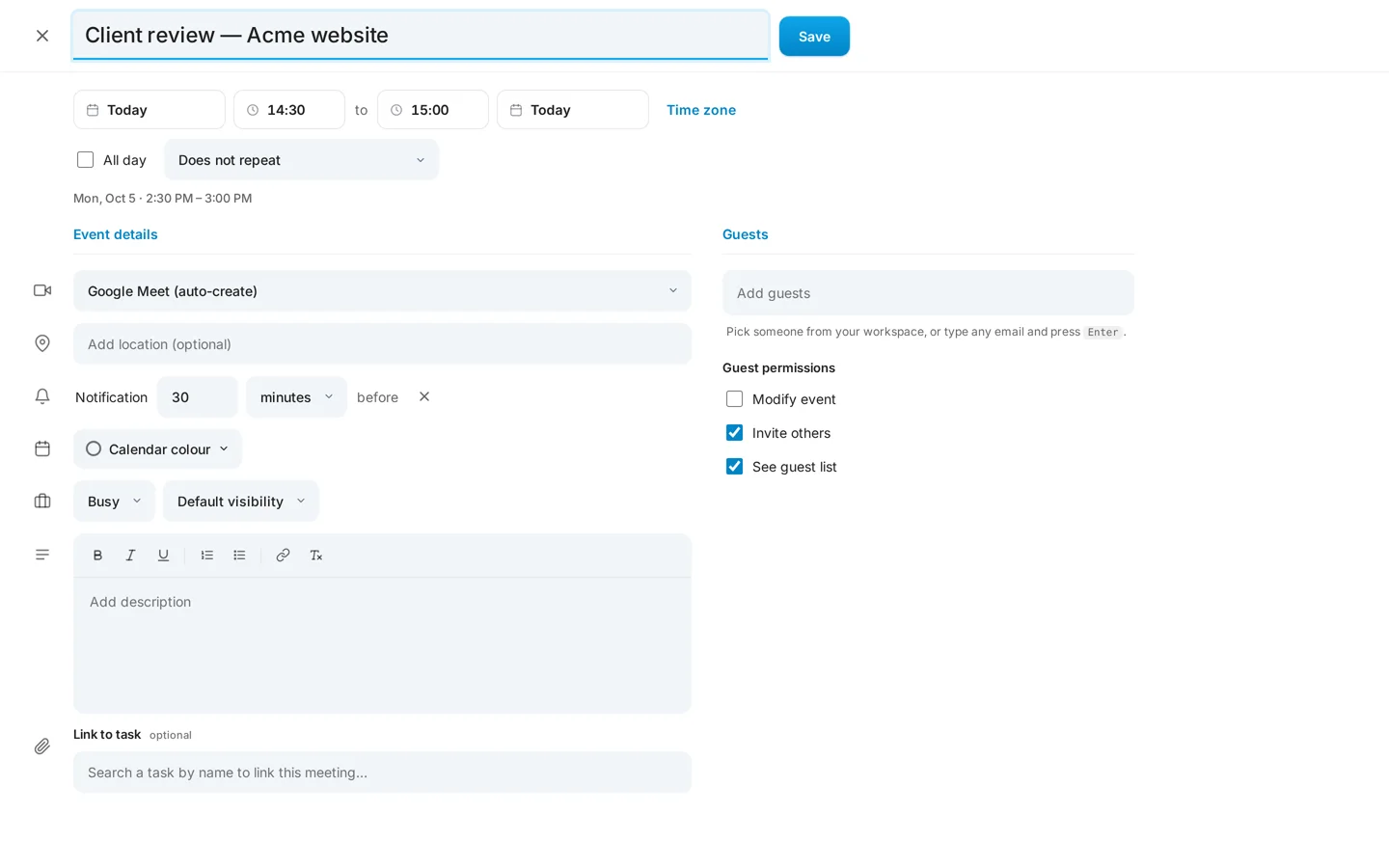
Use Time zone to schedule in a different time zone from your own. Saving can send invitations to the guests you chose.
Check where the meeting landed
Read the confirmation after creation and check the event in your calendar. A provider error can mean a meeting reached some connected calendars but not others.
If a conferencing option is unavailable, use a supported option for your connected account or create the meeting without conferencing. Review the result before inviting people again to avoid duplicate invitations.
Start a Snappi video meeting
A Snappi meeting is its own video room with a link you can share. It does not need a connected calendar. Select New meeting on workspace home, the Meetings page or any board, choose Start an instant meeting, and share the link from People.
Guests and people without a Snappi account can join from the link and wait in the lobby until the host admits them. In the meeting you can present your screen, draw on a shared whiteboard, open breakout rooms, record, and turn on AI notes.
The full instructions are in Meet on video.
Keep exploring
See all Snappi guides