
What does the AI note taker do?
The note taker listens to your meeting through your microphone and writes what is said into a note in Notebook, line by line, with the time of each line. When the meeting ends it adds who spoke, splits the note into topics, and writes a short English summary with decisions and action items.
It works for English, Sinhala and Tamil meetings. You can turn any line or summary point into a task on a board.
This guide covers recording in Notebook. In a Snappi video meeting, the host can turn on Take notes with AI instead, and the notes arrive in Notebook when the meeting ends; see Meet on video.
Before you start
- Use a computer or phone with a working microphone, in Chrome, Edge, Safari or the Snappi mobile app.
- Snappi records your microphone only. For an online call, use speakers rather than headphones so the other people can be heard, or sit near the room microphone.
- You need either notes pages or AI credits (Starter and above include credits every month; Free has none included, so prepay from $5). Free can prepay for it; meeting recording itself starts on Starter. Viewers cannot record.
Get notes pages
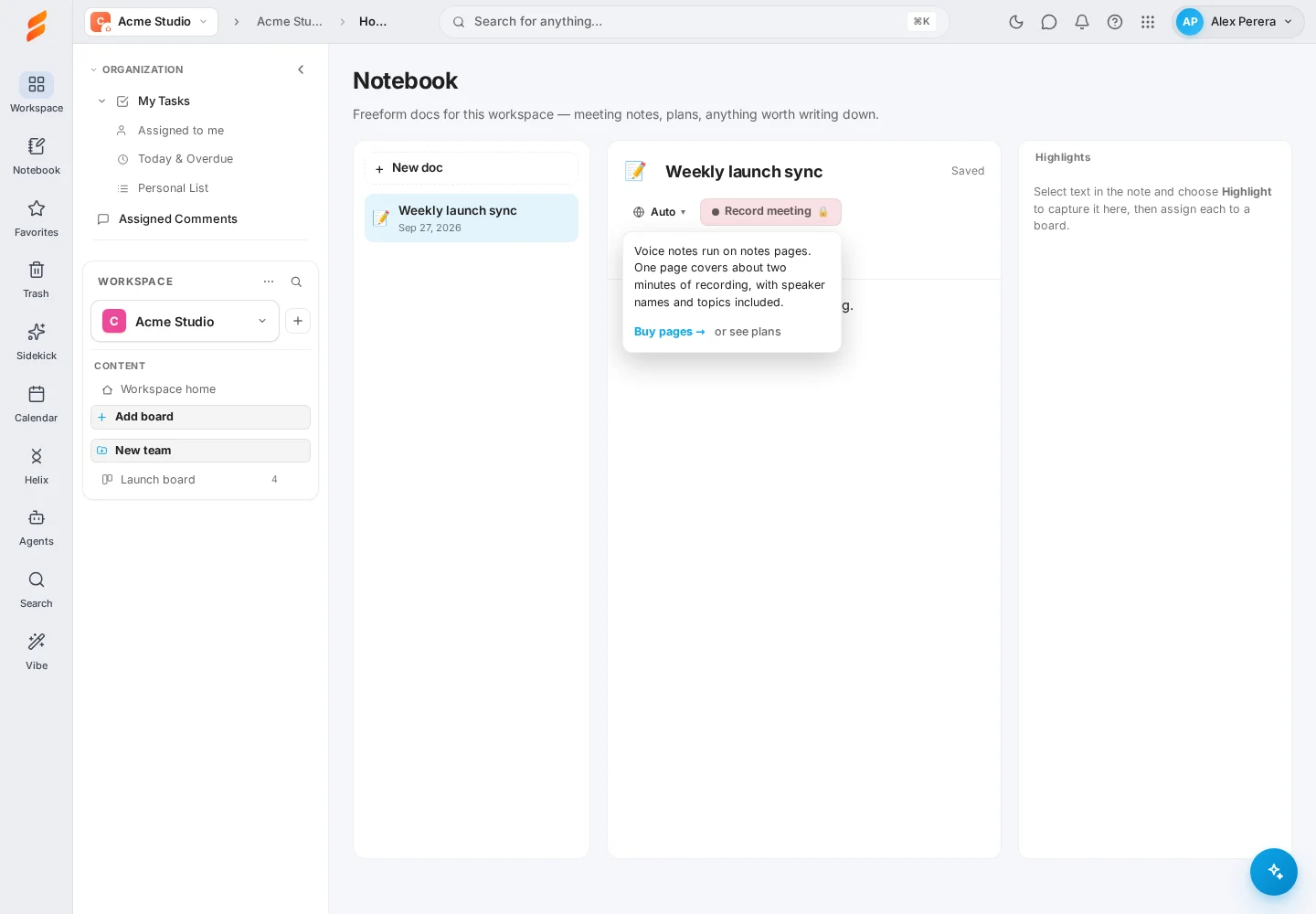
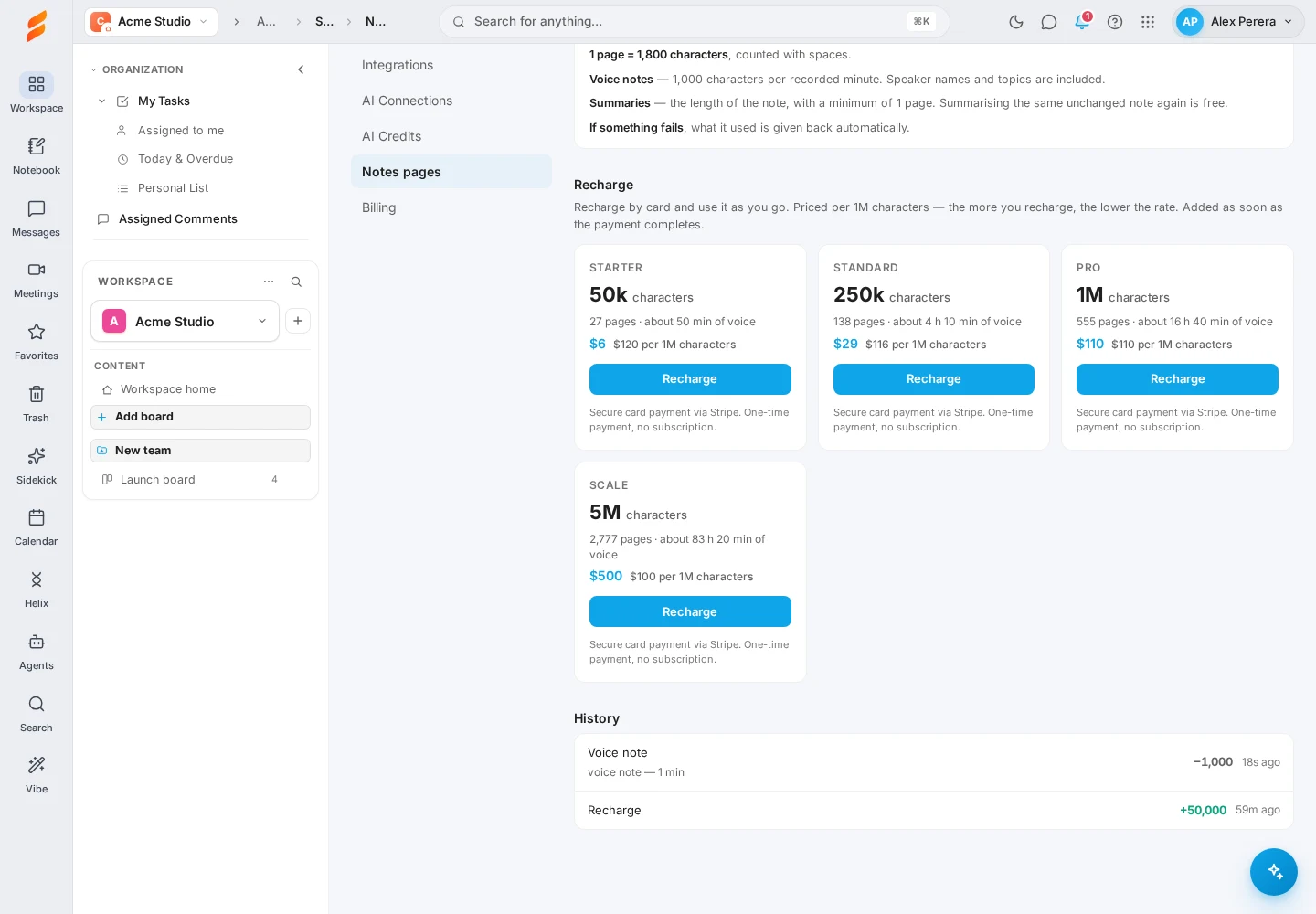
- Open Settings → Notes pages. If Record meeting shows a lock, choose Buy pages in the prompt to go straight there.
- Under Recharge, choose an amount and select Recharge. The price is set per 1M characters and the rate gets lower the more you recharge: about $110 per 1M characters, and smaller recharges start at $6. You pay once by card on a secure Stripe page; there is no subscription.
- When the payment completes you return to Snappi and the pages are in your balance.
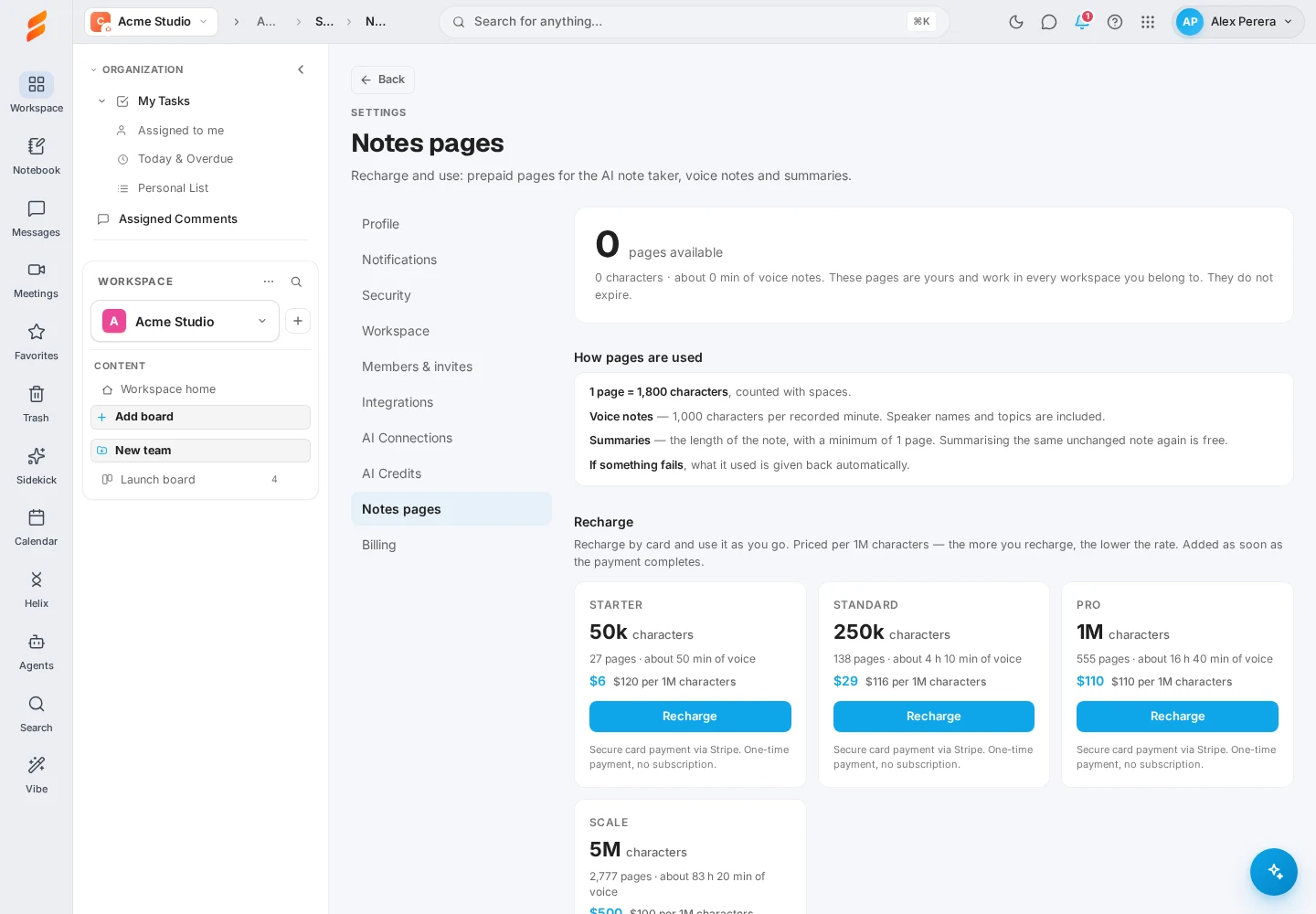
Pages belong to you, not to a workspace. They work in every workspace you belong to and do not expire.
How pages are used
- 1 page is 1,800 characters, counted with spaces.
- Voice notes use 1,000 characters for each recorded minute, so one page covers about two minutes. Speaker names and topics are included.
- Summaries use the length of the note, with a minimum of 1 page. Summarising the same unchanged note again is free.
- If a recording or summary fails, what it used is given back automatically.
Without notes pages, a workspace with AI credits pays from them instead: 1 credit per recorded minute, and 1 credit per 8,000 characters summarised.
Record a meeting
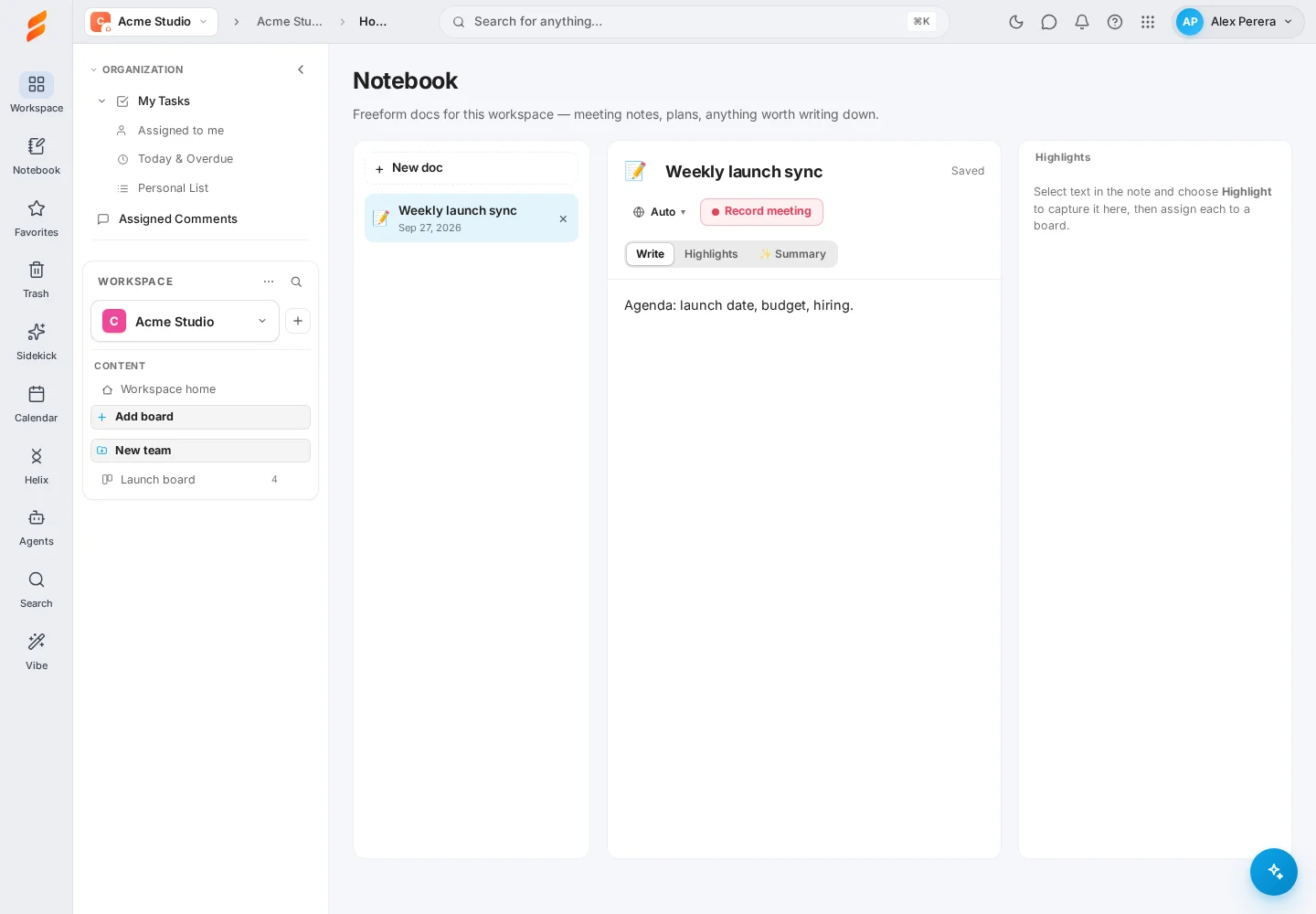
- Open Notebook and choose New doc, or open the note for this meeting. Give it a title.
- Choose the meeting language in the menu next to Record meeting. Pick Sinhala + English or Tamil + English for those languages; Auto cannot detect them. Both handle English words and sentences inside the meeting.
- Select Record meeting and allow the microphone when your browser asks.
- Speak normally. The bar shows Listening…, then what it hears, and each finished line is added to the note with its time. You can keep typing in the same note.
- Leave Identify speakers after the meeting ticked if you want names on each line.
- Select Stop when the meeting ends.
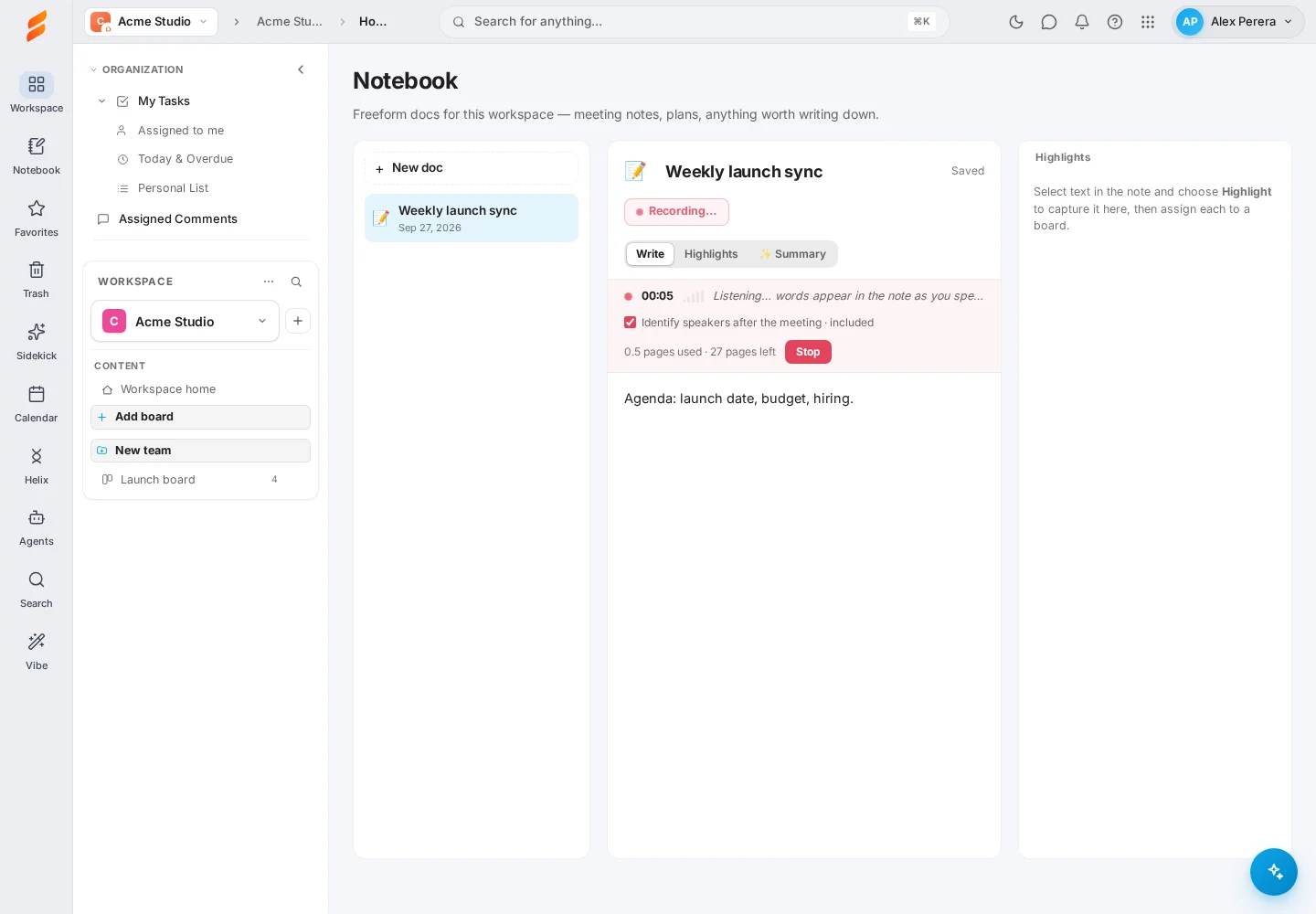
A recording can run for up to 8 hours. If your pages run out, the recording stops and everything written so far stays in the note.
What happens after you stop
Snappi finishes the note by itself. You will see each step as it happens:
- Speakers — each line gets the name of the person who said it, where the meeting makes the name clear, or Speaker 1, Speaker 2 otherwise.
- Topics — headings are added where the subject changes, and the note gets a title if it had none.
- Summary — written in English into the ✨ Summary tab.
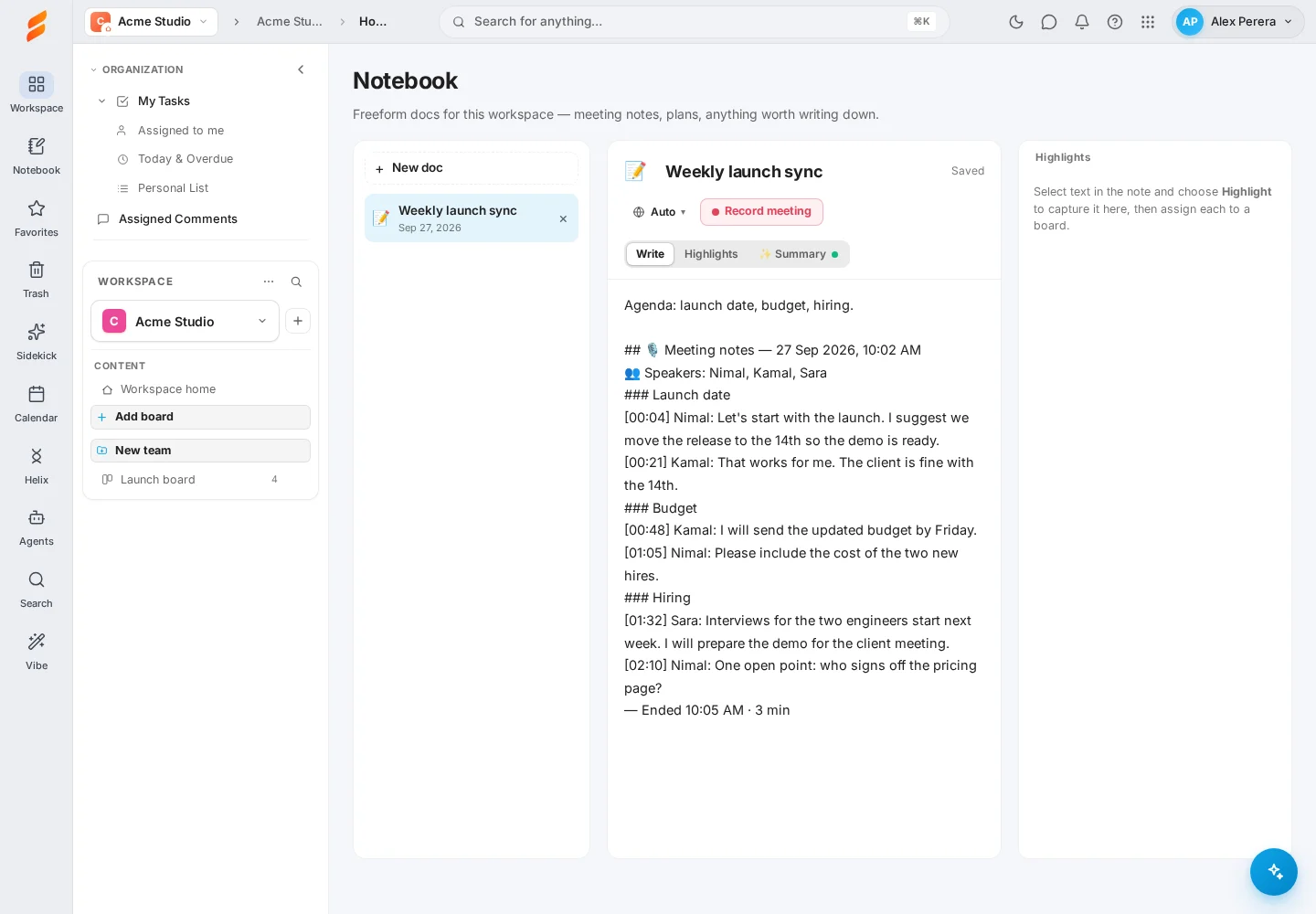
This takes from a few seconds to a few minutes for a long meeting. You can leave the note and come back.
Read the summary
- Open the ✨ Summary tab next to Write and Highlights. A green dot on the tab means a summary is ready; an amber dot means the note changed since it was written.
- Read the overview, the Step by step points, Decisions, Action items and Open questions.
- Summaries are in English by default, even for a Sinhala or Tamil meeting. Use the Language menu to change that, then choose Summarise again.
- Use Copy to paste it elsewhere, or Insert into note to add it to the note itself.
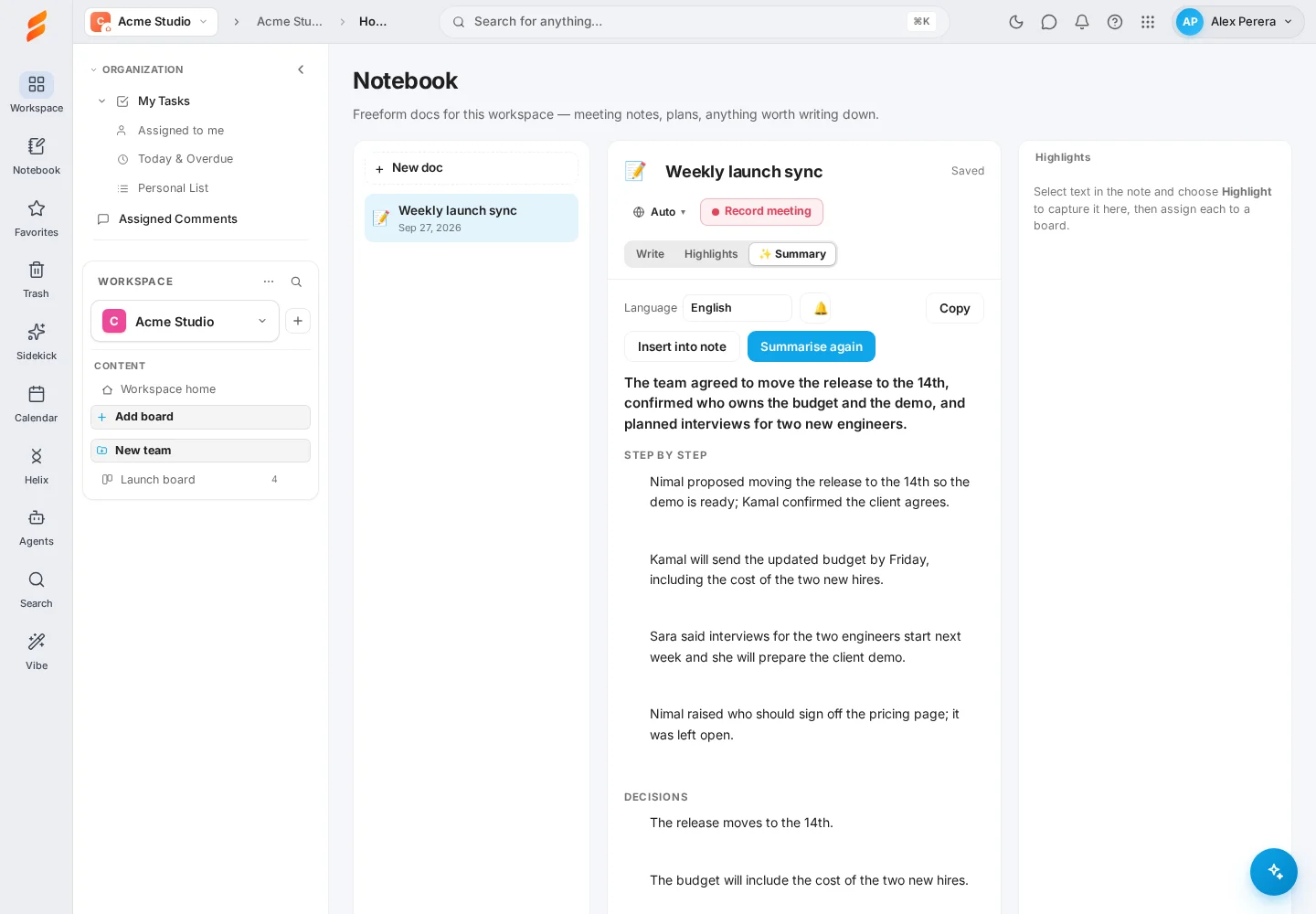
For a note you typed yourself, open the tab and choose Summarise this note. The bell button turns the waiting sound on or off.
Turn points into tasks
- In the Summary tab, hover a point and choose Assign to board, then pick the board and group. Choose Highlight to keep it for later instead.
- In the Write tab, you can do the same with any text: select the words, then choose Highlight or Assign.
- Open the Highlights tab to see everything you captured and which board each one went to.
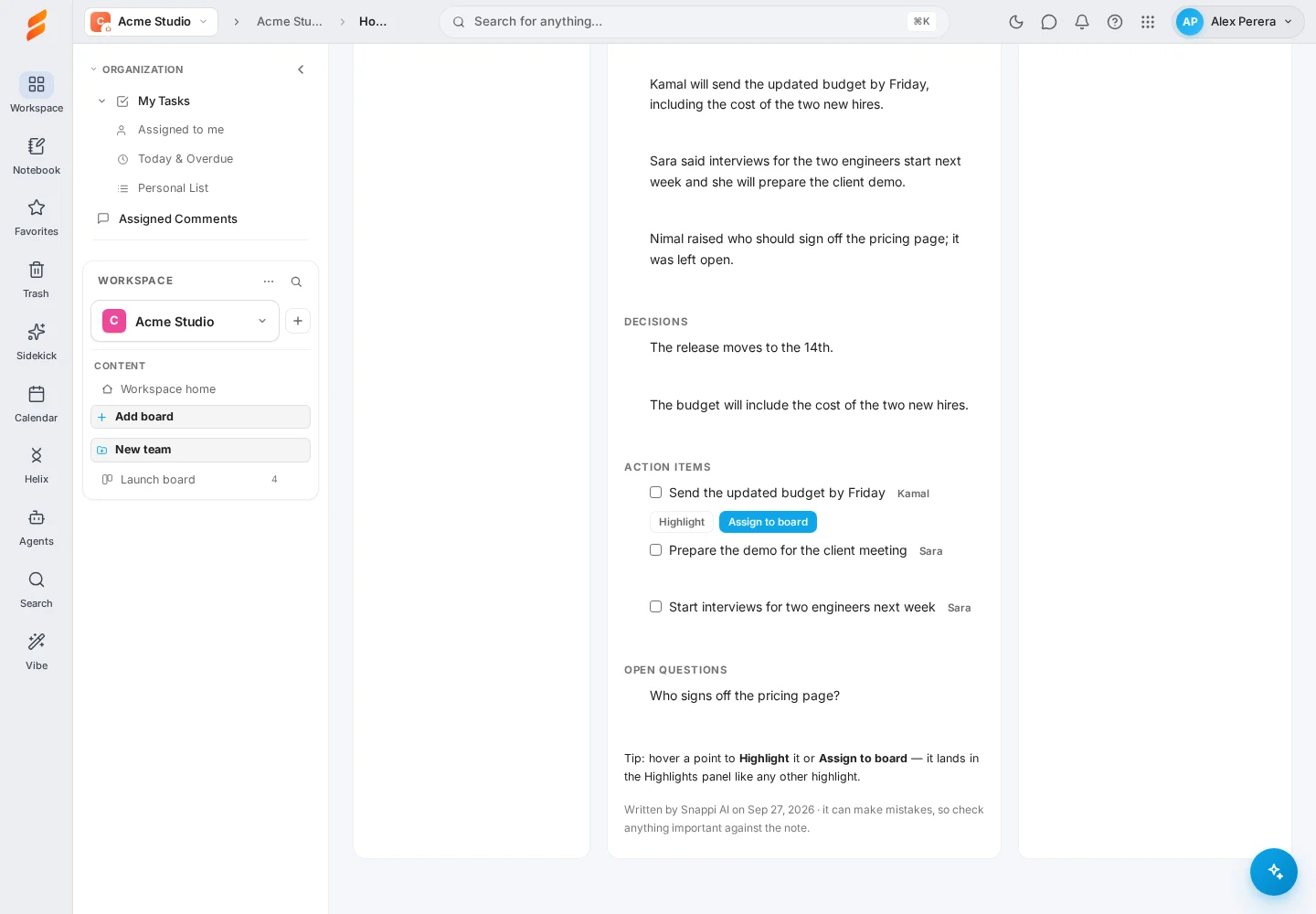
See Turn notes into next steps for more on highlights and boards.
Check your balance and history
Open Settings → Notes pages to see how many pages you have left, about how many minutes of recording that covers, and a history of every purchase, recording and summary.
Tips for a clear transcript
Snappi tidies the transcript as it goes: filler sounds such as “um”, “uh” and “erm” are left out, and stutters like “I I think” become “I think”. Words that carry meaning, such as “uh-huh” and “mm-hmm”, stay. This applies to live notes, meeting notes and transcribed recordings.
- Keep the microphone close to the people speaking and away from fans or keyboards.
- One person speaking at a time gives the best result.
- Say names out loud at the start (“Kamal, can you begin?”) so speakers can be named.
- Pick the right language before you press record.
If something is not working
- Record meeting shows a lock — you have no notes pages and the workspace has no AI credits. Buy pages in Settings → Notes pages.
- There is no Record meeting button — you are a viewer in this workspace, or voice notes are switched off. Ask a workspace admin.
- Nothing appears while I speak — check that the browser is allowed to use the microphone and that the sound meter in the bar moves when you talk.
- The text is in the wrong script — stop, choose Sinhala + English or Tamil + English, and record again.
- “Voice notes are very busy right now” — nothing was charged. Try again in a little while.
- The summary did not appear — open the Summary tab and choose Summarise this note. If it fails, the pages it used are given back.
- I deleted a note by mistake — open Notebook, choose Trash under your list of notes, and select Restore. Deleted notes are kept for 30 days, with their recordings and highlights.
- I paid but see no pages — wait a minute and reopen Settings → Notes pages. If they are still missing, contact us with the time of the payment.
Keep exploring
See all Snappi guides